Section: M&S Control
Subject: Procedure – Create & Review the Counting Journal
Approved by: Tony Massey
Effective Date: 21 December 2021
Last Reviewed Date: 21 December 2021
Policy Owner: ERP & Financial Manager
Policy #
Counting Journals #
Counting Journals are the most important part of the inventory process. Counting Journals must be ACCURATE, reflecting EXACTLY how much product is in inventory and where it is located.
The Monthly Counting Journal is the last thing to be completed in the month. The physical count must be completed the last day of the month. The Counting Journal must be completed by the end of the first business day of the following month. General Managers are responsible for completing the Counting Journal.
Prior to populating the Counting Journal, the following must be completed:
- Check all open PO’s, including the suspense file.
- Receive anything that was delivered during the month.
- Make sure all transfers and JVs are entered and posted.
The posted Counting Journal becomes the current on-hand inventory. If a mistake is made in the inventory process throughout the month, it can be corrected by doing a true-up count.
Before posting the Counting Journal, the General Manager must review the following:
- Warehouse usage (negative usage) – If warehouse usage is shown, it means material was consumed but not accounted for. This could be due to something minor such as variations in how an opened bottle is counted to major issues such as theft. The General Manager must review to determine the nature of the usage and take any appropriate corrective action.
- Swell (positive usage) and any abnormal usage – Errors when counting or inputting can throw large usage numbers that can be easily caught and fixed. This prevents issues with posting.
Create a Counting Journal #
1. Log in to Microsoft D365.
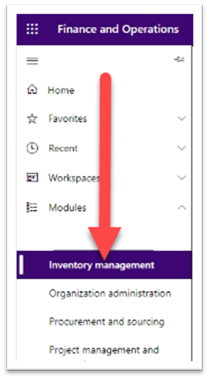
2. Click on the Modules tab (found on the left side menu bar, center screen).

3. Click on “Inventory Management.”
4. Click on “Counting.”

5. Click on “New” (found on the top left) (Fig. 4).

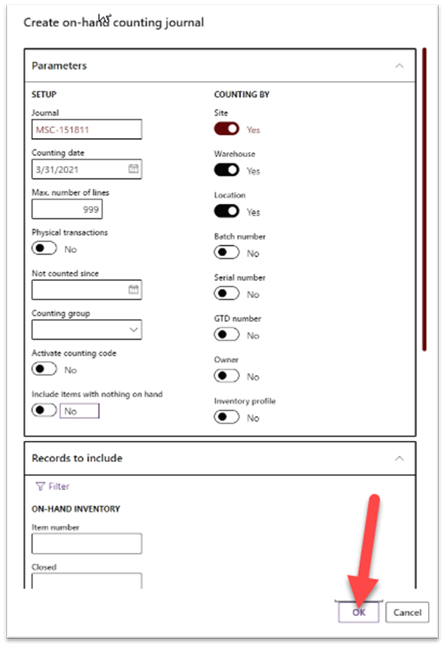
6. Check to make sure Warehouse and location are toggled to “Yes.” If they are not, switch them both to “Yes.” Once they are both “Yes,” click on “OK” (bottom right).

7. Click “Create lines” (found in the top left) to open a drop-down menu.

8. Click “On-hand.”

9. Click on the calendar icon in the calendar date field.
10. Click on the last day of the month.
11. Check to make sure “Include items with nothing on hand” is toggled to “No.” If it is not toggled to “No,” switch the toggle.
12. Click on “Records to include.”

13. Click “Filter.”

14. Type in your service center number (SC###) in the site box. Make sure the line in the table is shown as “Inventory Dimensions | Inventory Dimensions | Site | (SC###).” If you do not see “Site” in the field, click the drop down and change it to “Site.”
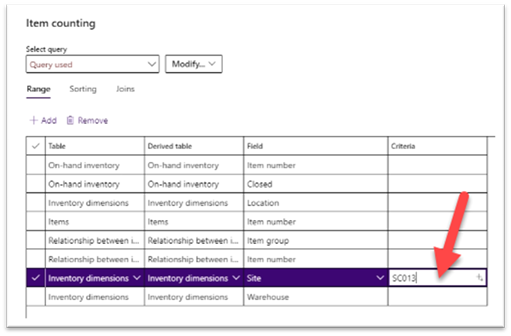
15. Click “OK” in the bottom right corner.
16. Click “OK” on the Parameters/Records to Include Screen.
17. Click on “Counted Field” to enter the product amount.
18. Repeat step 18 for all products that need to be entered.
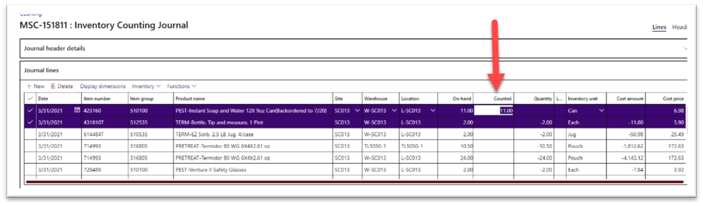
19. If all products are entered, the task is complete.
Review a Counting Journal #
1. Log in to Microsoft D365.
2. Click on the Modules icon on the right of the screen to open the modules tab.
3. Click on “Inventory Management.”
4. Click “Counting” (see step 2, 3, and 4 of Creating a Counting Journal).
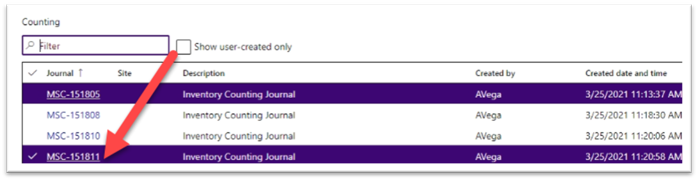
5. Click on the MSC-###### of the Inventory Counting Journal that needs to be reviewed.
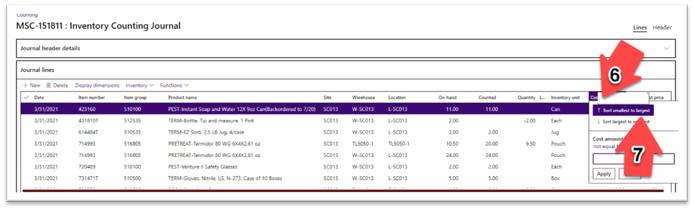
6. Click the “Cost amount” heading to open the drop-down box.
7. Click “Sort smallest to largest.”
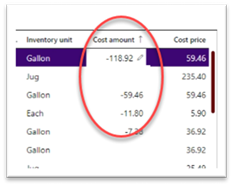
8. Review the cost amount column for amounts that would be alarming.
9. If there are alarming amounts, figure out the reason and correct.
10. If there is nothing that requires further attention, continue to the next step.
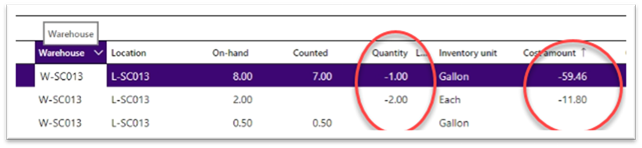
11. Click on “Warehouse” heading to open the drop-down box.

12. Type “w” in the text field.
13. Click “Apply” to see a snapshot of usage in the warehouse.
14. If there is usage showing in the warehouse, figure out why and correct.
15. If there is no usage showing, click clear in the warehouse drop down box to clear all the filters.

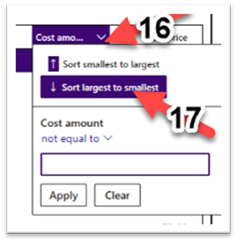
16. Click the cost amount field to open the drop-down box.
17. Click “Sort largest to smallest.”
18. If there are overages showing, figure out why and correct.
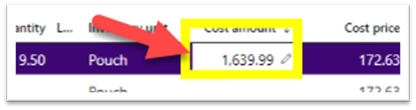
19. If there are no overages showing, continue to the next step.
20. Check the date for the Inventory Counting Journal.
21. If the date is not recorded as the last day of the month, fix it.
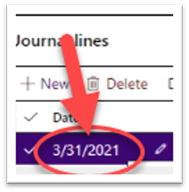
22. If the date is the last day of the month, the task is complete.