Section: M&S Control
Subject: Procedure – Receiving Purchasing Orders
Approved by: Tony Massey
Effective Date: 21 December 2021
Last Reviewed Date: 21 December 2021
Policy Owner: ERP Finance Manager
Policy #
The Service Manager is responsible for receiving purchase orders in Microsoft D365. The purchase order must be received in D365 the same day the material is delivered. The procedure for physically receiving product is outlined in SPP 602 M&S Requisitioning & Purchasing.
Receiving Purchase Orders #
1. Log in to Microsoft D365.
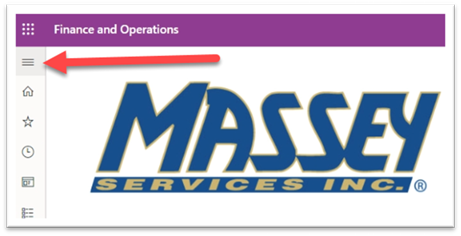
2. Click on Navigation Pane (≡ top left).
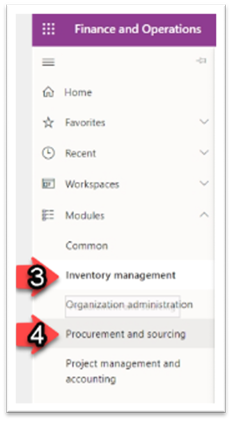
3. Click on Modules, then “Inventory Management.”
4. Under the Inventory Management menu, click on “Procurement and Sourcing.
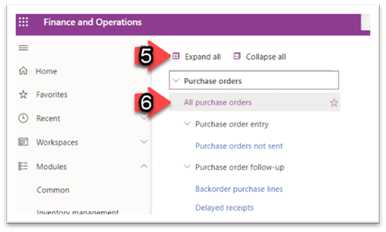
5. Click “Expand All” (top of the pullout menu) to see all menu options.
6. Click on “All purchase orders” (found on the top, underneath Purchase orders).
7. Click on “Site” (top menu) to open the drop-down box. If Site column is not visible, contact AX Support.
8. Type in your service center number (SC###).
9. Click “Apply.”
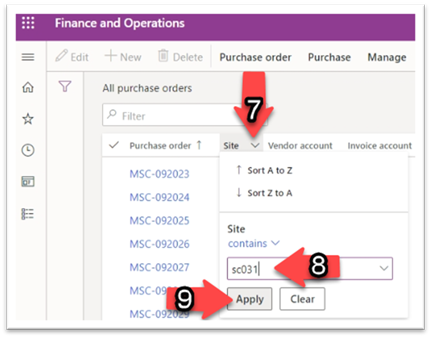
10. Find the purchase order you would like to receive and click the purchase order number (MSC-######).

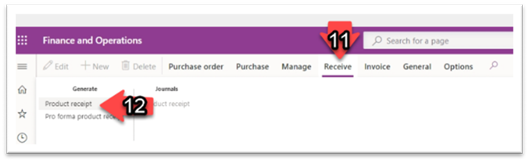
11. Click “Receive” (top menu).
12. Click “Product receipt” (under Generate).
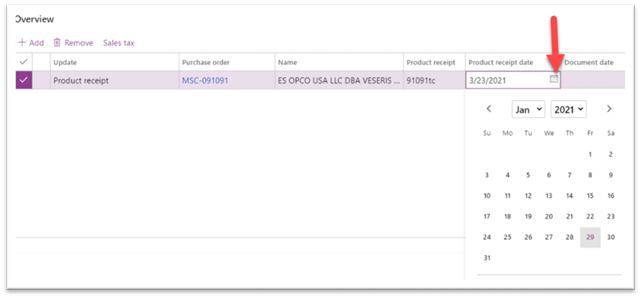
13. Input the packing slip number in the product receipt number field. Click the calendar icon under “Product receipt date” and click the date the product was received.
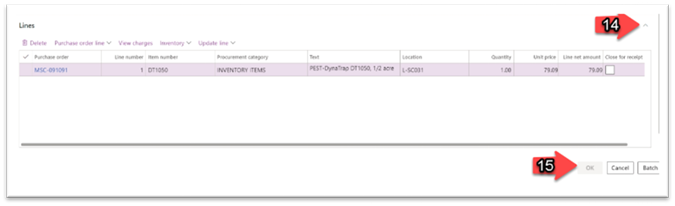
- Scroll down the Lines box. Click the up arrow (far right of screen) to view the item detail.
- Change the quantity field to the number you received. If you received a partial order and are missing items, change the quantity reflect the actual amount received. Notify Purchasing by email immediately of the missing items, record the communication and details of missing, damaged, wrong item, etc. Click “OK” to verify the items that were received (bottom right of screen). (The okay button will turn purple when step 14 is complete).