Section: M&S Control
Subject: Procedure – Send and Receive Product Between Service Centers
Approved by: Tony Massey
Effective Date: 21 December 2021
Last Reviewed Date: 21 December 2021
Policy Owner: ERP Financial Manager
Policy #
On occasion, it may be necessary to transfer product from one service center to another. The accounting tool used to track and manage these transfers is called a journal voucher, or JV. The JV credits the service center transferring the product, ensuring their inventory count and value reflects the reduction in product. At the same time, it debits the receiving service center, ensuring their inventory count and value reflects the addition in product. The amount of the credit must always equal the amount of the debit. By JV’ing the material, we ensure the month end usage calculations are accurate.
Microsoft D365 handles JVs as a transfer of product from one service center to another.
The inventory line itself gets transferred (not just the dollar amount).
This will allow the receiving service center to then issue it and use it as normal.
This process must be completed the same day product is transferred between service centers.
How to Send and Receive Journal Vouchers: #
1. Log in to Microsoft D365.
2. Click on the Modules Page (≡ top left).
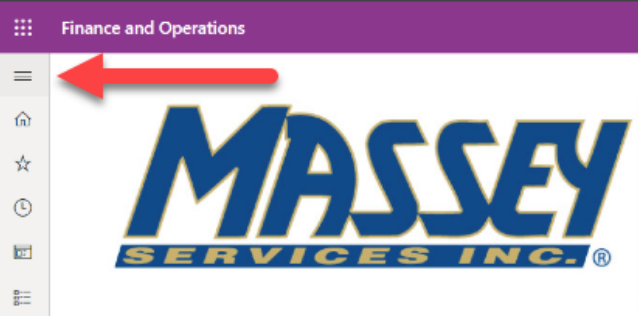
3. Click on “Inventory management” from the menu items.

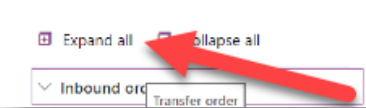
4. Click “Expand all” (top of the pullout menu).
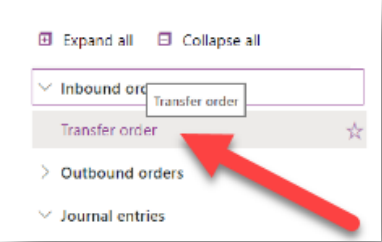
5. Under the Inbound orders menu, click “Transfer order.”
Steps to Sending Journal Vouchers: #
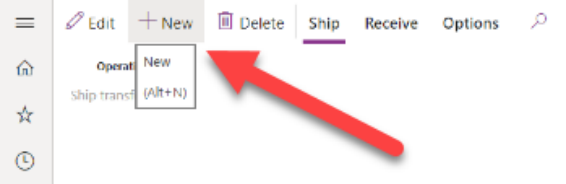
1. Click “New” (top left corner).
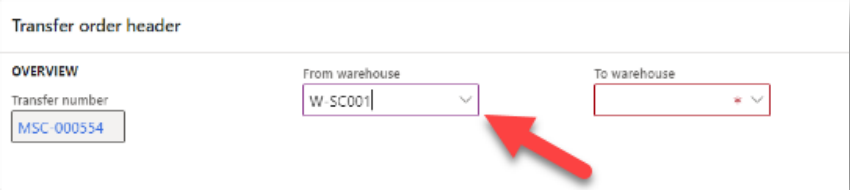
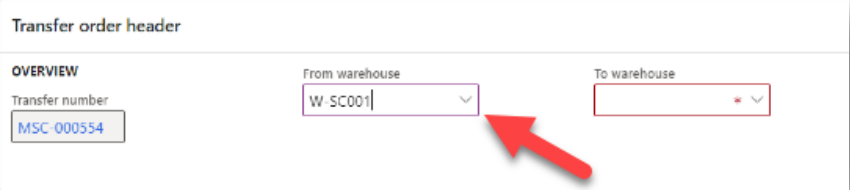
2. Click the “From warehouse” pulldown menu. A warehouse is anywhere inventory is stored. This includes the warehouse cage and individual vehicles inventory. You may have to search for your individual office by searching W-SCxxx. The xxx is the service center number. An example includes W-SC001 equals Service Center 1 and W-SC120 equals Service Center 120.
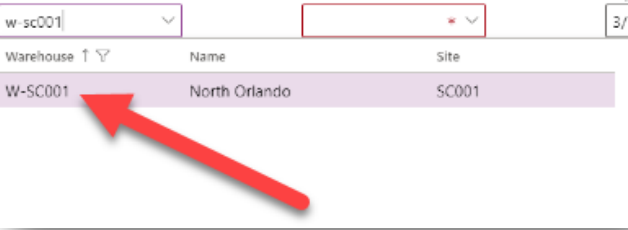
3. Click the warehouse you want to transfer product from. This example shows W-SC001 as Site SC001 in the North Orlando office.
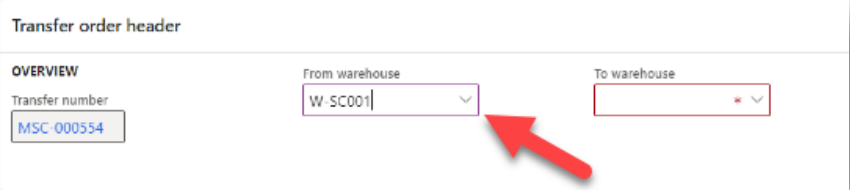
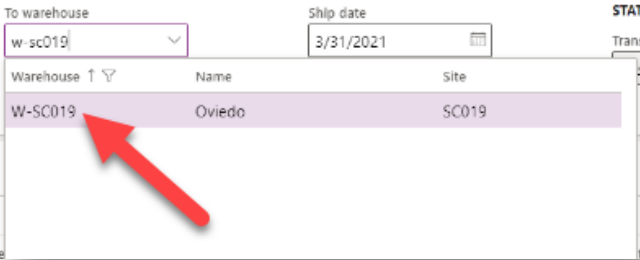
4. Click the “To warehouse” pulldown menu.
5. Click the warehouse you want to transfer to. This example shows W-SC019 as Site SC019 in the Oviedo Office.
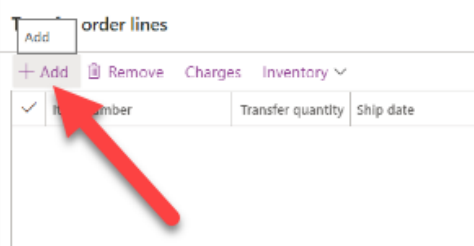
6. Select “+ Add” from the Transfer order lines.
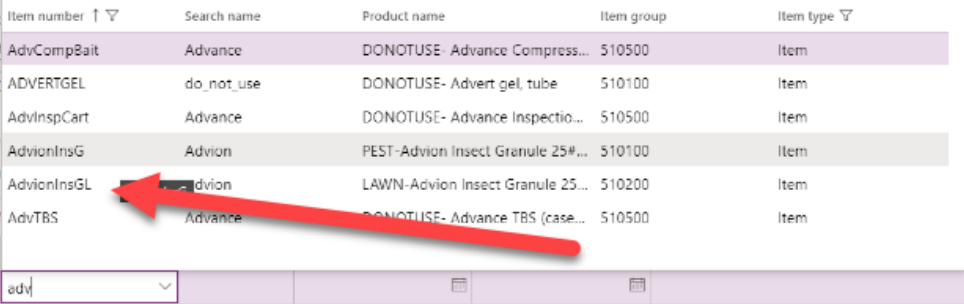
7. Type the name of the product you would like to transfer into the search menu. This example shows the first three letters for Advion Insect Granules.
8. Click the product you would like to transfer.
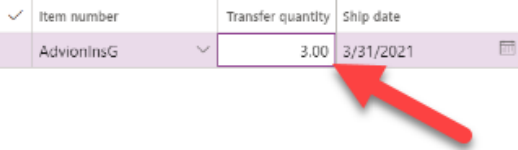
9. Click and adjust the “Transfer quantity” to the amount being transferred from one warehouse to another warehouse.
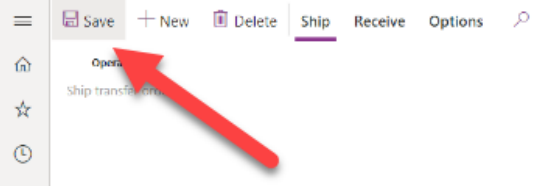
10. Click “Save” (top left corner).
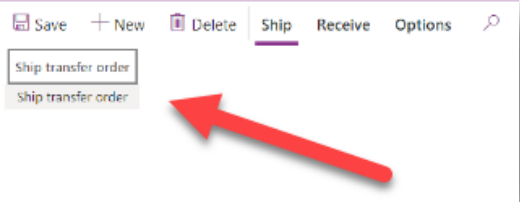
11. Click “Ship transfer order” (top left corner).
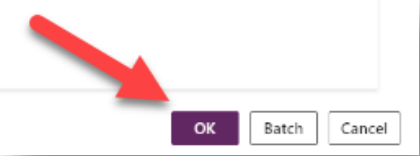
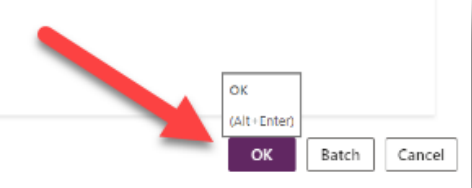
12. Click “OK” (bottom right corner). Send an email notifying the receiving service center they must receive the JV same day.
Steps to Receiving Journal Vouchers: #
1. Locate and click the transfer number from the list.

2. Click “Receive” (top menu).
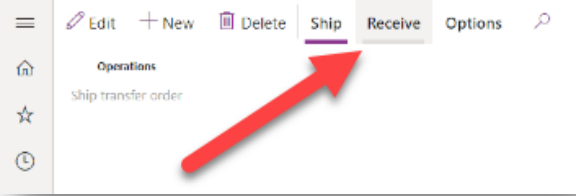
3. Click “Receive” (top left corner).
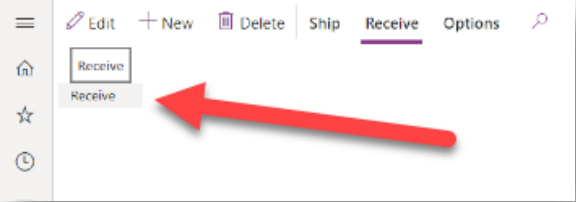
4. Verify the information is correct.
5. Click “OK” (bottom right corner).