Section: Pest Prevention and Lawn Service Procedures
Subject: Lawn Check-In Procedure Mobile Version
Approved by: DRAFT
Effective Date: N/A
Last Reviewed Date: N/A
Policy Owner: Technical Training Director Lawn
Policy #
yThe primary duties of the Service Manager is to organize, schedule, assign, and hold each Team Member accountable for their daily work. The check in process ensures that all of the necessary information has been entered and captured in the handheld. The goal is to ensure proper record keeping of materials, observations and actions performed by each Team Member, daily mileage, and time worked.
The reports used to check in your Team Members are:
- Assigned Daily Worksheet – Printed out for Team Member in the morning before route begins
- Technician Summary Report – Printed from the Real-Time Mobile Dashboard
- Pre Posting Observations and Action Detail – Printed from the Real-Time Mobile Dashboard
- Pre Posting Detail Report – Printed from Real-Time Mobile Dashboard
- GreenUP Daily Check-In Sheet – Ending truck inventory – report filled out at end of day
- GreenUP Daily M&S Sheet – Manual report filled out at end of day
- Graphs – Turned in with Team Member’s daily work
Assigned Daily Worksheet #
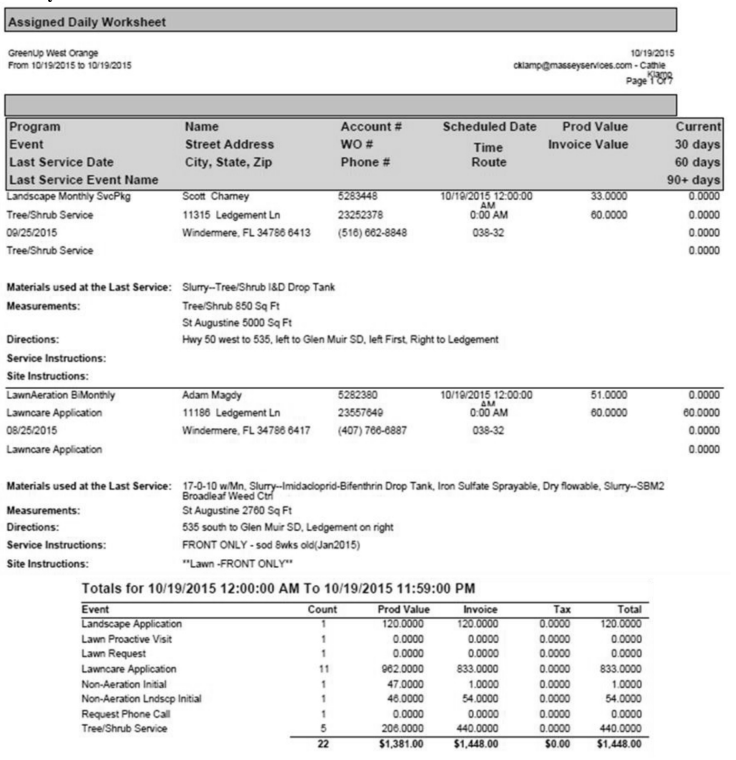
This report is printed out and given to the Team Member in the afternoon after check-in to do their calls ahead. The report will be run again in the morning to reflect any changes to the route for that day. Any information noted by the Specialist or payments received should be reviewed at the time of check-in and given to the Office Manager.
To print out check In reports 2-4, follow these steps:
- Log into ServicePro.net.
- Click on the Office tab.
- Click on the Real-Time Mobile Dashboard link.
- Click on the Technician Summary Report tab.
- Choose your Service Center from the drop down list.
- Click the View link for the route you need to verify.
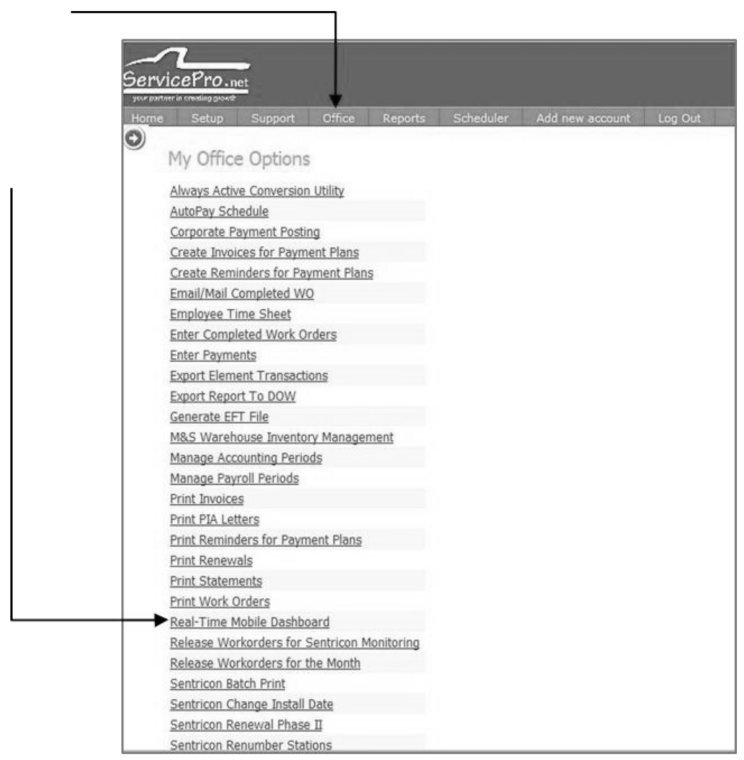
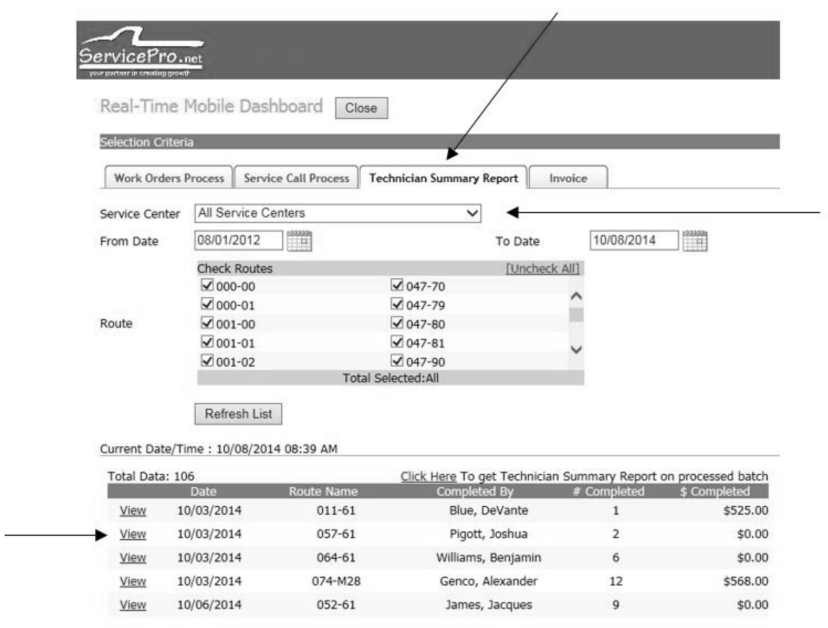
After the View link is clicked, the three reports will display in PDF format. Print ALL THREE reports to use for check-in. Each report displays important information you will need for check in.
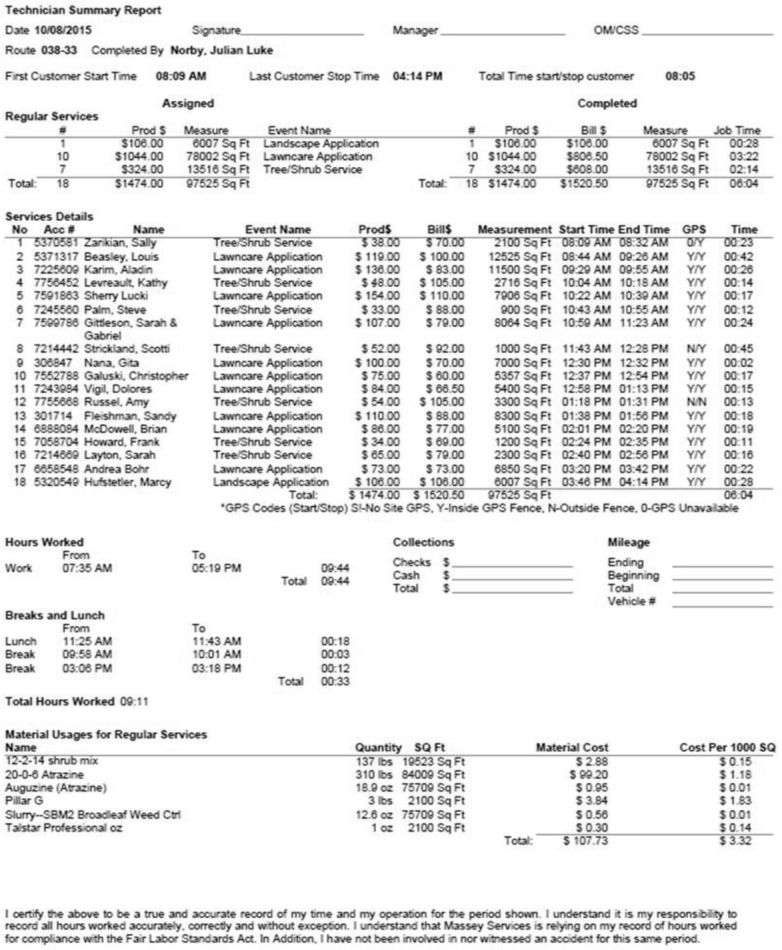
Dashboard Report 1 – Technician Daily Summary Report #
This report totals the production done for the day, the materials used, hours, worked, and truck mileage. Please verify all amounts balance to what the Specialist has completed. Also verify that the material amounts used match, or are close to the Daily M&S by product. If any of the Time In/Out or mileages are incorrect, it is the Service Manager’s responsibility to enter a helpdesk ticket to correct the errors.
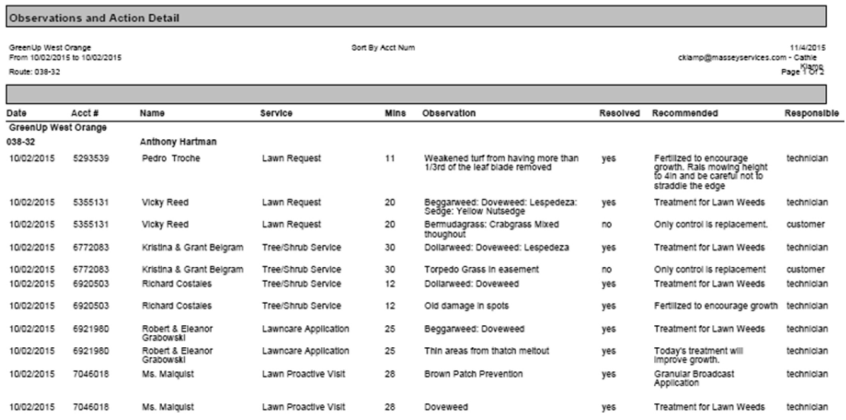
Dashboard Report 2 – PRE-POSTING Observations and Action Detail #
- This report will display all of the Observations and Actions your Specialist entered on accounts for that day. Observations and Actions are required for all services to properly show the value of the service we are providing our customers.
- Ensure that the Observations and Actions list all reasons or goals of the application as well as the method of application. This information is necessary to show the value of the service we provide.
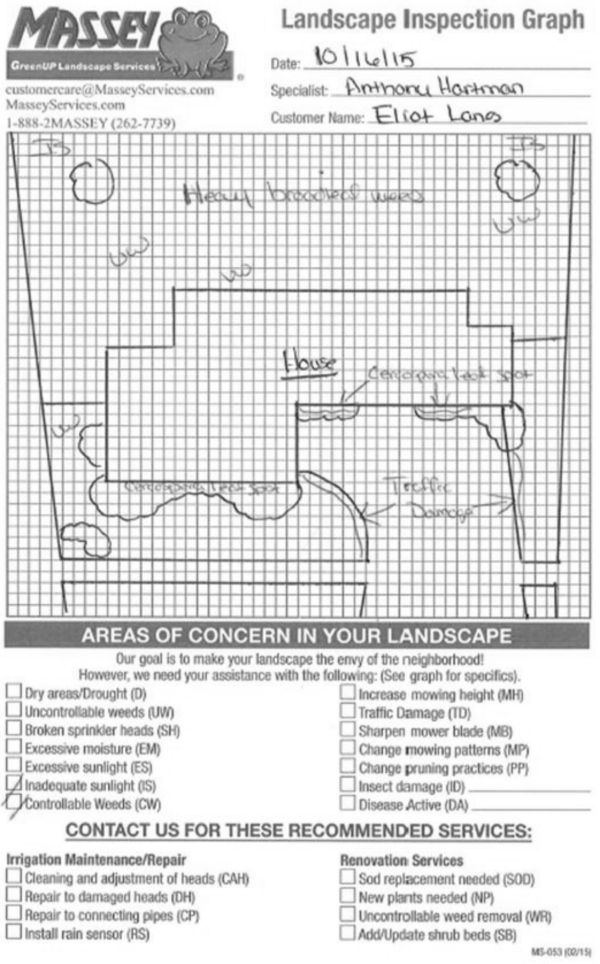
- A separate “Landscape Inspection Graph” is required when localized damage of any kind to turf or ornamental shrubbery is present. It is also necessary when “control” for insects or disease is provided and damage is present. Verify that a graph of that properly has been completed.
Dashboard Report 3 – PRE-POSTING Detail Report #
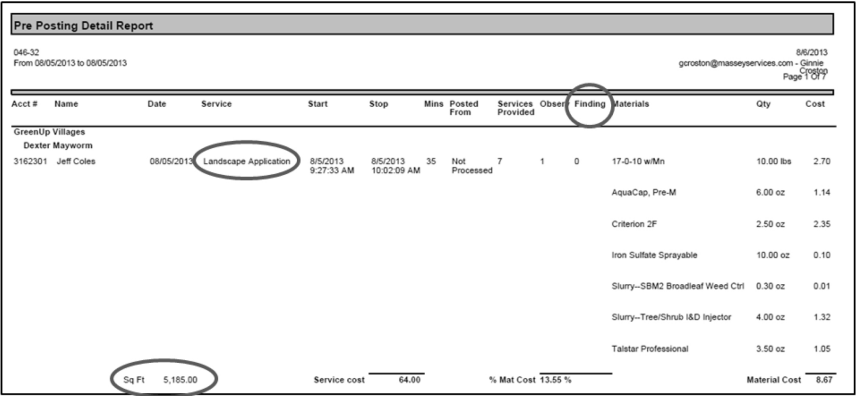
- On the Pre Posting Detail Report, verify the materials and amounts used are proper for the type of service and the square footage of the lawn or shrubs.
- Also verify that the Findings are being entered for all Proactive/Requests completed for the day. When findings have been entered, there will be a count in the Findings column.
- If localized damage of any kind to turf or ornamental shrubbery is present, or when “Control” for insects or disease is provided and damage is present, a separate “Landscape Inspection Graph” is required.
GreenUP Daily Check In Sheet & GreenuUP Daily M&S Sheet #
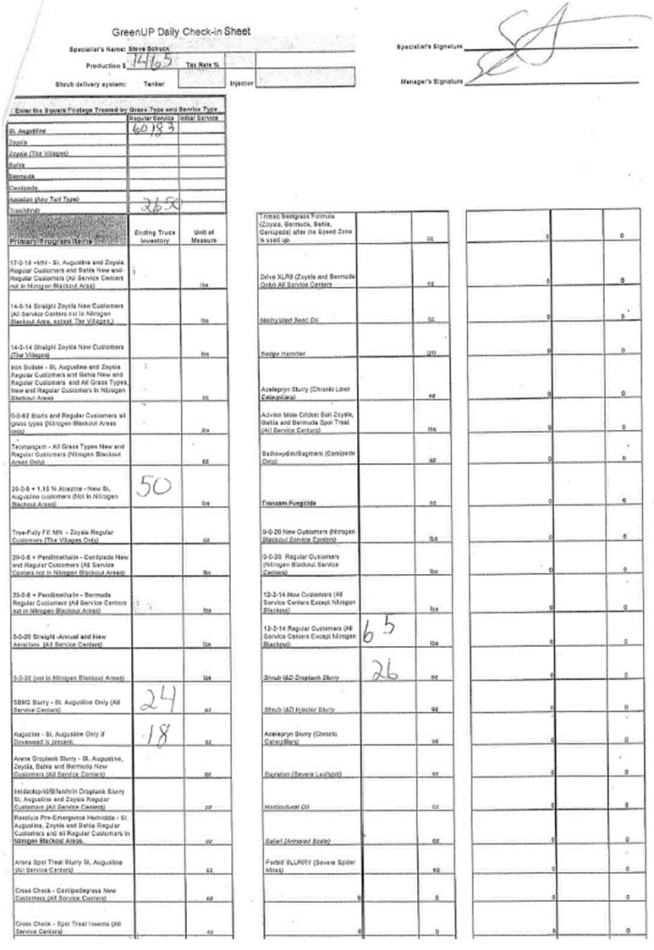
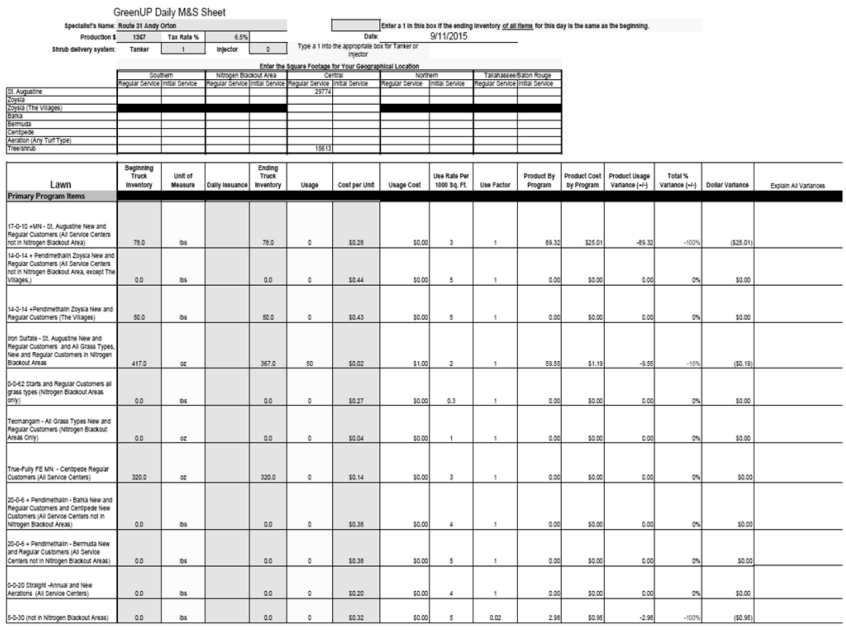
Take the ending inventory from the Team Member’s GreenUP Daily Check-In Sheet and enter it into the GreenUP Daily M&S sheet. Using the Technician Summary Report to identify the square footage of the types of service, Regular and Service Calls vs Initial, enter these totals into the spreadsheet. Any large variances should be investigated and explained in the area provided.
Graphs #
A separate “Landscape Inspection Graph” is required when localized damage of any kind to turf or ornamental shrubbery is present. It is also required when “Control” for insects or disease is provided, and damage is present. These graphs should be reviewed at the same time as the Pre-Posting Detail Report and the Pre-Posting Observations and Action Report.
- When all reports have been verified, combine all of the listed reports from page 1. Verify that required signatures have been obtained. Combine all the reports together into an individual packet and notify the Office Manager to process the batch.
- Print out the previous business day’s Technician Summary Report and have the Specialist sign. This copy will have the proper time out from the previous day. Give this copy to the Office Manager. The Office Manager must attach this copy to the previous day’s packet.
- Print the Assigned Daily Worksheet at this time so your Specialist can begin calling their customers scheduled for the next day.
- If you are borrowing a Specialist that normally works in another Service Center, after the Specialist clocks out for the day, reprint their Technician Summary Report, scan and email it to their home Service Center. After the other Service Center obtains the Specialist’s signature, this must be emailed back to you and attached to the work packet.
- Team Members may be sent to another Service Center to help complete production. When this occurs, enter a helpdesk to Handhelds listing the name of the Team Member, and the office they will be working in. This will ensure that, when they arrive, work will be able to be assigned through the handheld. The Team Member should bring their handheld with them to the other Service Center.