Section: Accounting
Subject: Payroll Recap
Approved by: Tony Massey
Effective Date: 6 October 2025
Last Reviewed Date: 6 October 2025
Policy Owner: Director of Payroll
Purpose #
The Payroll Worksheet contains the Instructions tab, Lookup Table, Payroll Recap, Allocation Worksheet, and the Sales Correction Worksheet. These documents provide a summary of hours and earnings for all team members in a service center.
The following explains the use for each tab of the Payroll Worksheet:
- The Instructions tab provides detailed directions on how to use and accurately complete each tab on the payroll worksheet.
- The Lookup Table lists all team members with employee ID, service center number, position, pay group, and hire date.
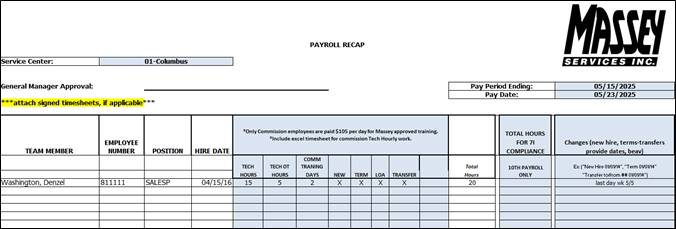
- The Payroll Recap contains a summary of team members, hybrid tech hours, training hours for commissioned team members, 7I hours, and status changes.
- The Allocation Worksheet separates hourly technician compensation into the proper general ledger (GL) categories for the profit and loss statement (P and L).
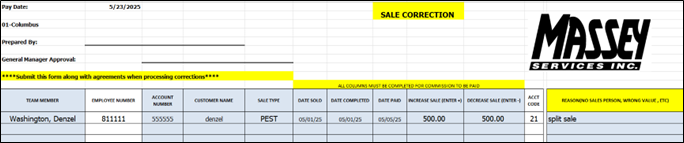
- The Sales Correction Worksheet provides detail for any sales commissions that were paid inaccurately on a previous payroll cycle creating the need for a correction.
Lookup Table #
The Lookup Table is a list of all team members in the service center. This tab is designed to automatically populate data for the other tabs within the Payroll Worksheet. It is imperative that all information listed on the Lookup Table is kept up to date and accurate.
The Lookup Table includes:
- Employee id number (‘000000)
- Team member name (last name, first name)
- Service center number (‘000)
- Position (drop-down selection)
- Pay group (drop-down selection)
- Hire date (MM/DD/YY)

Process for Adding a New Team Member to the Lookup Table #
- Go to the last row of data.
- Add the following team member information:
- Employee ID formatted with an apostrophe in front of the number (Example: ‘811111)
- Team member last name, team member first name (Example: Washington, Denzel)
- Service center number formatted with an apostrophe in front of the number (Example: ‘018)
- Select the team member position from the drop-down list.
- Select the pay group from the drop-down list.
- Enter the hire date. (Example: 04/15/16)
- Highlight the entire worksheet and sort alphabetically by team member name.
Process for Deleting an Existing Team Member from the Lookup Table #
- Highlight the row.
- Select delete on the keyboard.
- Highlight the entire worksheet and sort alphabetically by team member name.
Payroll Recap #
The Payroll Recap serves as a cover sheet for the Payroll Worksheet. Several areas are automatically populated from the information on the Lookup Table.
The Payroll Recap includes:
- Service Center (manually populated)
- Pay Period Ending Date (manually populated)
- Pay Date (manually populated)
- Team Member (auto populated from the Lookup Table)
- Employee Number (auto populated from the Lookup Table)
- Position (auto populated from the Lookup Table)
- Hire Date (auto populated from the Lookup Table)
- Hybrid Tech Hours (manually populated)
- Training Days for Commissioned Team Members (manually populated)
- Status Updates (manually populated)
- 7I Hours (manually populated)
- Comments (manually populated)
Payroll Recap Process:
- Update the Service Center with the Service Center Number – Name. (Example: 01 – Columbus)
- Update the pay period ending date. (Example: 05/15/2025)
- Update the pay date. (Example: 05/25/2025)
- Fill in any hybrid tech hours. These are hours worked by a commissioned and hourly technician.
- For month end payroll only, add the number of training days for the month.
- Check any boxes that are relevant for status updates or changes.
- Add 7I hours for all production commissioned technicians.
- Provide any details in the comments area. Examples include hire or termination date, first date of a leave of absence, or transfer date and location.
Allocation Worksheet #
The Allocation Worksheet is used to assign technician hours to correct GL categories for the P and L. All hourly technician hours must be added to the Allocation Worksheet.
Hour Allocation Process:
- Copy the data from the Reported Time Blocks for a Work – GM – Location report pulled from Workday.
- Paste the data into the Allocation Worksheet.
- Update the hours for each date to reflect the time spent in each category code.
- Review the data to ensure columns M and K say “Match.”

Sales Correction Worksheet #
The Sales Correction Worksheet details inaccurate sales commissions paid in a previous payroll cycle, requiring correction.
Sales Correction Process:
- Select the team member name from the drop-down list.
- The employee number will populate automatically once the team member name is selected.
- Add the customer’s CRM account number.
- Add the customer’s name.
- Select the sale type from the dropdown list.
- Add the date sold.
- Add the date completed.
- Add the date paid.
- Add the sales value as a positive value in the increase sale column if we are paying the team member commission.
- Add the sales value as a negative value in the decrease sale column if we have overpaid the team member.
- The account code will automatically populate.
- Manually enter the reason. Examples include no salesperson, wrong value, or split commission.
Please refer to the Instructions tab in the Payroll Worksheet for further guidance on how to effectively use and accurately complete each section of the worksheet.