Adding & Configuring Products #
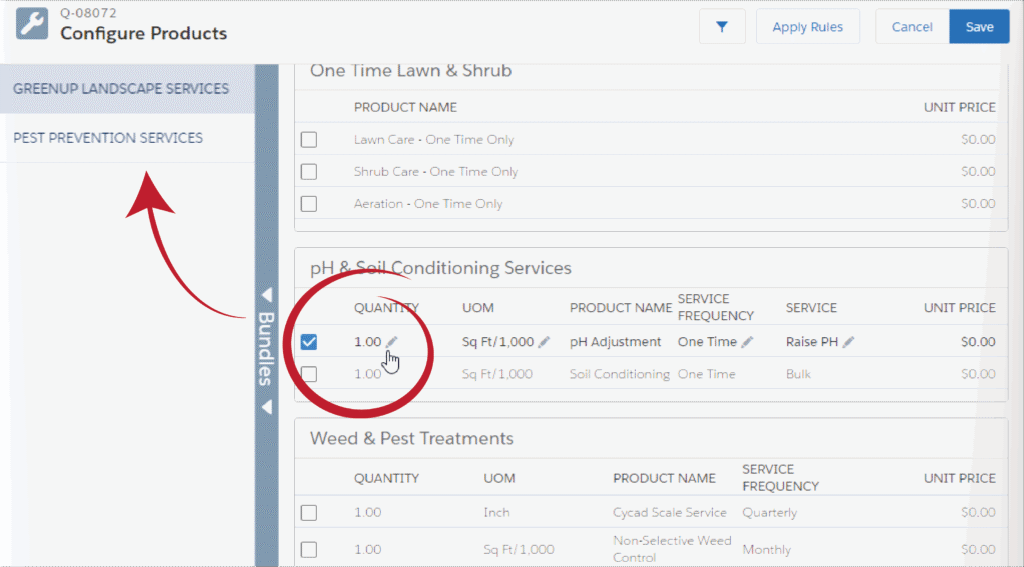
- After clicking Select, the Configure Product window will automatically appear.
- Use the check boxes to add services and products.
- Update quantities of selected items using the pencil ( ✏ )icon.
- For multiple Services, use the Bundles menu to switch between them to continue configuring.
- Click Save to finish.
Finishing the Quote #
- The Edit Quote screen will appear with the line items.
- Here you can:
- add more products
- copy, delete, favorite, and reconfigure
- use Quick Save to save a draft of your work
- Click Calculate to force Salesforce to check the math.
- Click Save to save the Quote for approvals and presenting it to the Customer.