Adding a New Credit Card Authorization and Processing a Payment #
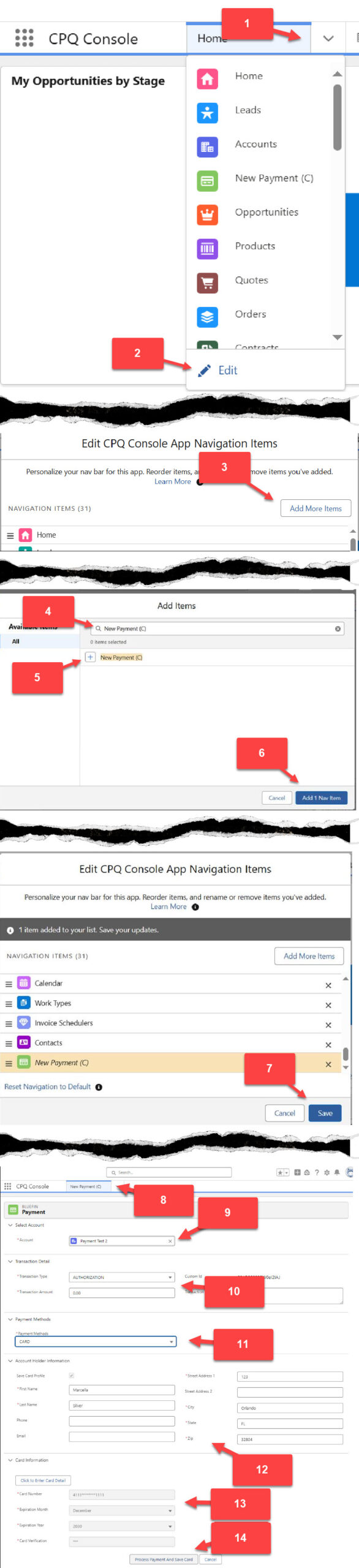
- From the Home Screen, Select the drop-down arrow to open the Object Picklist
- Select Edit
- Select Add More Items
- From the Search Bar, Type in NEW PAYMENT (C)
- Select the + icon
- Select Add 1 Nav Item
- Select the Save Button
- Select the New Payment (C) tab prior to Adding a New Credit Card Authorization.
- Search and select the account
- Set Transaction Type to AUTHORIZATION and Transaction amount to 0.00 to add a New Credit Card Authorization. To add a payment with the Credit Card, Select SALE and add the Transaction amount for the sale.
- Set the Payment Methods to CARD.
- Add the Credit Card Account Holder Information. To Save the card information, select the Save Card Profile.
- Add the Card Information
- Process the Payment and Save the Card