Procedures #
For bad debt accounts you will:
- Prepare the Bad Debt Adjustment form
- Continue final collection efforts and send final certified letters
- Send for RM approval to bad debt the account
- Make the bad debt adjustment to the account (for those approved by RM)
- Send information to Corporate Accounting
How to Prepare Bad Debt Adjustment Form #
- The first step is to prepare the customer’s Bad Debt Adjustment form. You will usually perform this at the beginning of the month for the files you made a decision on the previous month.
- Start by getting the customer’s file in order:
- Make sure you have the customer’s original Service Agreement
- Ensure the approved Cancellation Request is in the customer’s file. If it isn’t, print it from ServicePro.
- Print the Notes from ServicePro detailing the collection efforts.
- Ensure you have copies of all the Service Reports that support the delinquent balance.
- Then prepare the Bad Debt Adjustment form and attach it to the file. In the top portion of the form, fill in Customer Information.
- In the Collection Activity section, fill in the details of all the collection efforts made up to this point. If you have good, detailed notes in ServicePro, print and attach them to the Bad Debt Adjustment form, noting “SEE ATTACHED NOTES.”
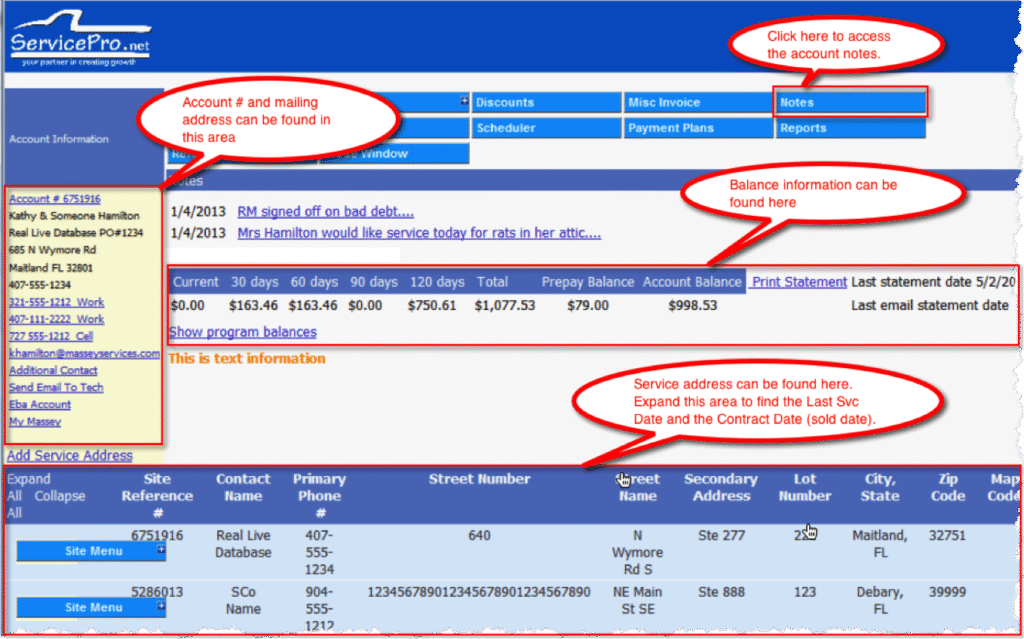
- Where can you find the information needed to complete this form? Most of the information can be found on the General screen for the account in ServicePro.
Continue Final Collection Efforts and Send Final Collections Letter #
- The next step is to continue the final collections efforts and send the Final Collections Letter.
- Send the Final Collection Letter, Certified, Return Receipt Requested within 24 hours of the account being cancelled.
- Continue making telephone calls to this customer to attempt to collect.
- Verify on the USPS.com site that the letter was delivered. Print this page as it will serve as the Certified-Return Receipt
- Note: Sometimes the customer may decline to pick up the letter or accept delivery of it. In these cases, the letter will be returned, and you will not receive a Certified-Return Receipt.
Send for RM Approval to Bad Debt the Account #
- The third step is to send the account for bad debt approval. On or before the 10th of the month:
- Copy the entire file, including the Bad Debt Adjustment form. This copy is referred to as a “Dummy-File.” Keep the dummy-file in the Service Center to be filed by service type, in the cancel drawer once the Bad Debt has been approved and posted to the customer’s account.
- Send the originals to the Regional Manager for approval.
- A copy of the approved Bad Debt Adjustment form will be returned to the Service Center (emailed or faxed) by the 25th of each month, once the Regional Manager signs/approves it.
Make the Bad Debt Adjustment #
- The fifth step is to make the bad debt adjustment to the account. On the last working day of each month, check each account for which a Bad Debt Adjustment form has been approved. Accounts with balances should be posted with the appropriate adjustment code. This will be done in ServicePro.
- Login to ServicePro and search for the account from the Home screen. Locate the account in the search results. Once you have accessed the account in ServicePro you will perform the following steps to make the bad debt adjustment:
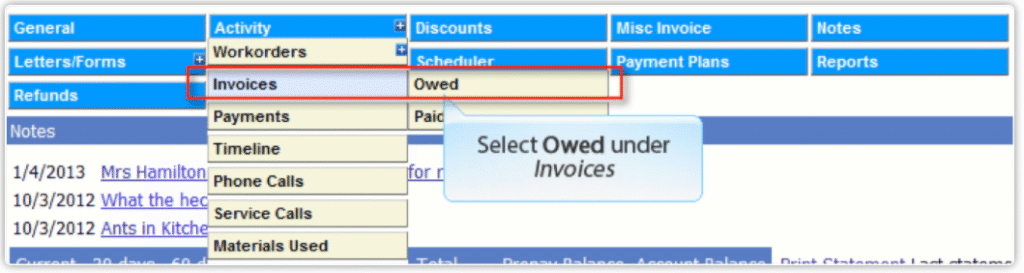
- From the account screens, click Activity in the top navigation toolbar.
- Select Owed under Invoices in the drop down.
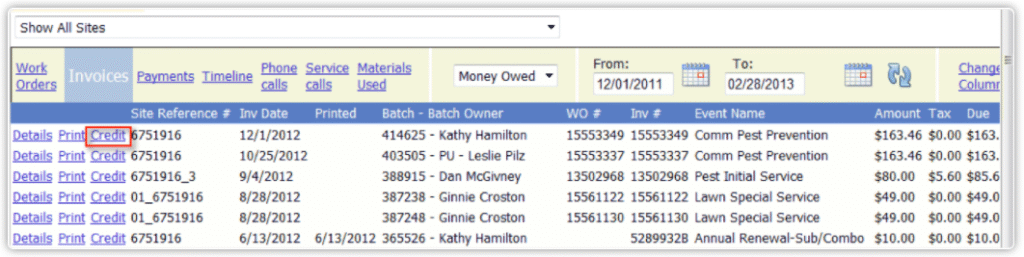
- From the screen that displays, find the invoice you want to bad debt and click Credit next to it.
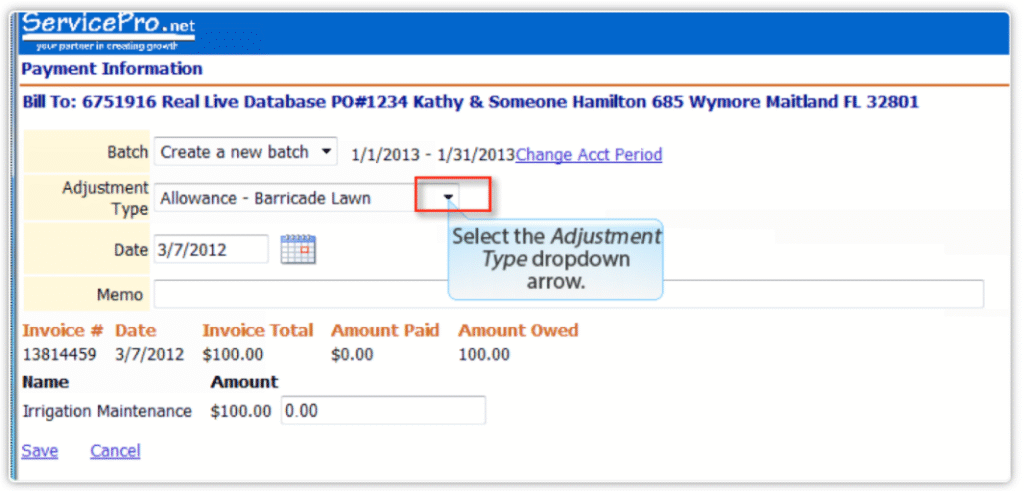
- From the screen that displays, select the appropriate bad debt adjustment for the Adjustment Type drop down.
- e. Click Today in the Date calendar.
- Enter a memo into the Memo box
- Enter the amount in the Amount text box.
- Click Save.
- You have now bad debted the account and the invoice will show as paid.
- Note the account, so others viewing the account know it has been bad debted.
- Click General from the top navigation bar.
- Click the Account # in the Account Information section of the General screen.
- From the screen that displays, navigate to the Address Information section.
- Select the Bad Debt checkbox.
- Enter “Bad Debt <<>> <<>>” in the Customer Info text box.
- Click Finish.
- Lastly, note the account in the Notes section.
- Click Notes in the top navigation bar.
- From the screen that displays, click Add new note.
- Enter your note in the Add new note text box.
- Click Save.
 Step 2a-b
 Step 2c
 Step 2d
 Step 2e-h
 Step 2i-k
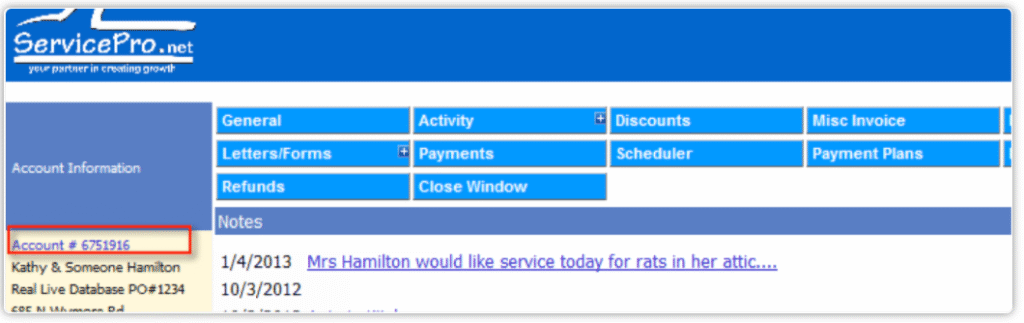 Step 2l
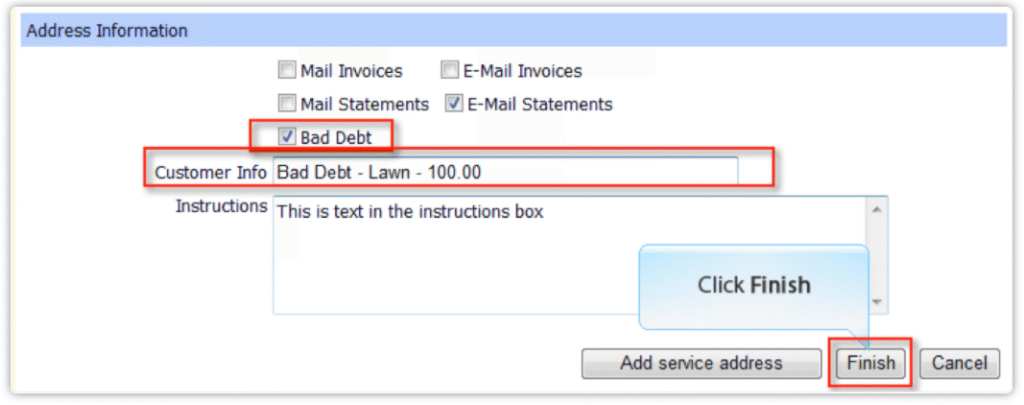 Step 2m-p
 Step 2q-r
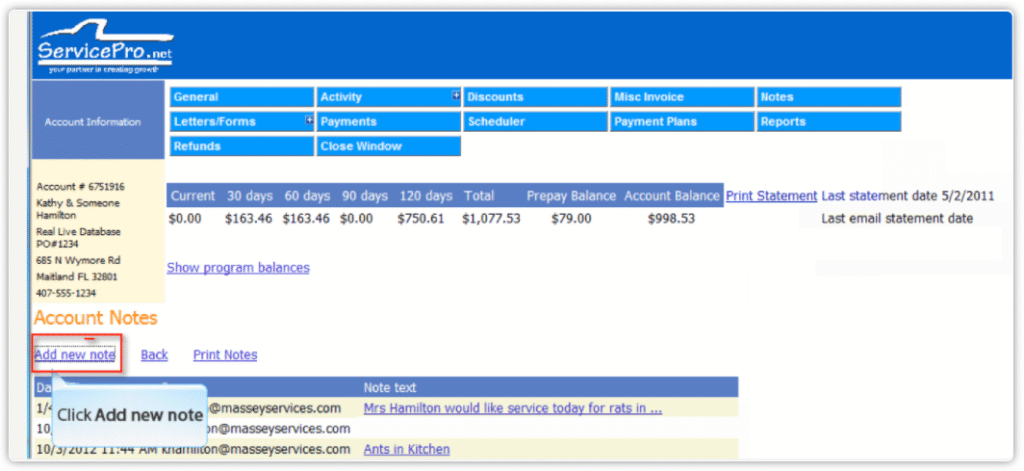 Step 2s
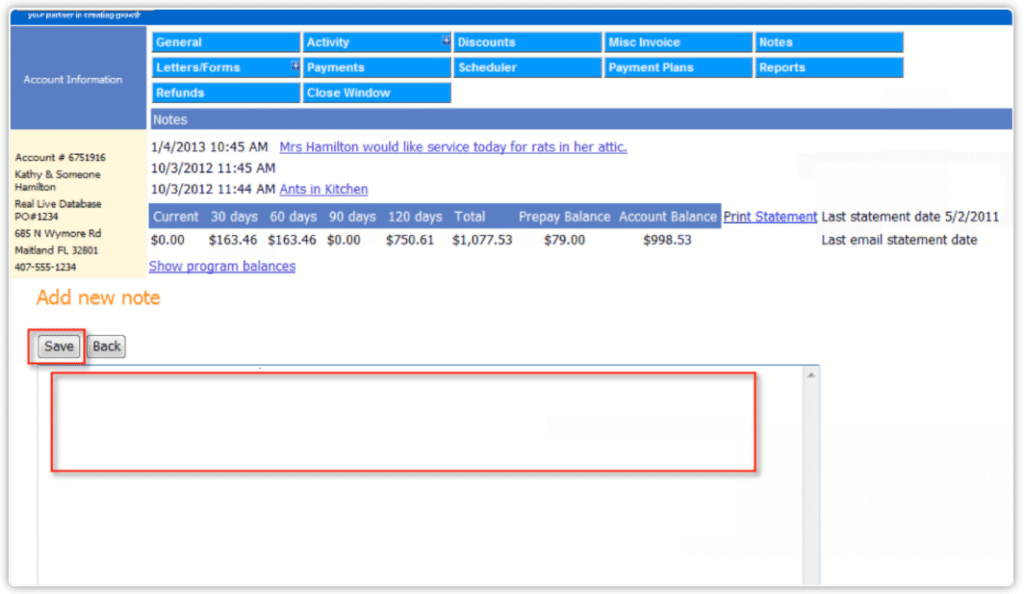 Step 2t-u
Send Information to Corporate Accounting #
- The last step is to send the information to Corporate Accounting. A copy of the Bad Debt Adjustment form should be sent to Corporate Accounting with month-end closing reports. Corporate Accounting will send a final collection letter. If the customer does not respond within 15 days of this letter, the account will be turned over to a collection agency.
- Important Notes
- The goal of collections is to collect past due amounts. What happens when you receive payment for an account that is in collections? Once an account has been bad debted, do not post a payment to that account until corporate accounting has reversed the bad debt adjustment. Notify the Corporate Accounts Receivable Administrator of all paid accounts and request that the original customer file be returned to the Service Center.